Close Menu
Infoceptor
  • Business
  • Finance
  • Technology
  • Health
  • Life
  • More
    • Auto
    • Food
    • Health
    • Home
    • Space
    • Travel

Subscribe to Updates

Get the latest creative news from FooBar about art, design and business.

What's Hot
Flywheel Logo

Flywheel review in 2023

June 8, 2023
Travel restrictions in Canada are different depending on where you're traveling from and to. Here's what you need to know before you go.

Canada: Traveling restrictions and what you need to know before you go

May 19, 2024
If you are planning a trip to Spain, there are some travel restrictions that must be taken into consideration.

Spain: Traveling restrictions and what you need to know before you go

May 19, 2024
Facebook X (Twitter) Instagram
Infoceptor
  • Business
    This guide will show you how to determine the value of your business using different business valuation methods.

    How to value you business – The ultimate guide for 2023

    May 9, 2024
    Have you ever thought of starting your own laundry service? Find out how with this easy guide.

    How to start a laundry service company in 2023

    May 5, 2024
    Learn about the best online payment solutions available to you. Check out what’s available, learn their pros and cons, and choose the one that best fits your needs.

    The 15 best online payment solutions in 2023

    April 27, 2024
    Learn how to create powerful backlinks for your website and increase your site's search engine ranking.

    How to build backlinks to your website

    April 25, 2024
    In this beginner's guide, we will show you the steps involved in creating a mobile app.

    Beginner’s guide on how to develop a mobile app

    April 24, 2024
  • Finance
    Learn how to build wealth and financial security. This article will share steps you can take to build a reliable cash reserve that will grow over time.

    Do you want to build wealth? Here are some ways to grow your money

    May 18, 2024
    Want to know your tax bracket? Check out our article for an overview of the different brackets and what you can expect to pay in 2022.

    Understanding IRS tax brackets – here’s what you’ll pay in 2023

    May 14, 2024
    This article will cover the best electric vehicle battery stocks to buy and invest in.

    The 10 best EV battery stocks to buy in 2023

    May 9, 2024
    The 10 most active penny stocks to watch this year is a list of the most active penny stocks ranked by total volume.

    The 10 most active penny stocks to watch in 2023

    May 8, 2024
    These electric car stocks are making a lot of money and you should consider adding them to your portfolio.

    The best electric car stocks to buy in 2023

    May 8, 2024
  • Technology
    Flywheel Logo

    Flywheel review in 2023

    June 8, 2023
    This article provides a list of the top iPhone models available today. Each model is reviewed based on features, specifications, performance, design and price point.

    Top iPhone models we’ve tested and you should get

    May 17, 2024
    Find out everything you need to know about the Apple Airpods Pro, including their price, features and if they're worth buying.

    Are Apple AirPods Pro a great choice in 2023?

    May 17, 2024
    To help you find the best responsive WordPress themes, we analyzed more than 100 themes and found those that are currently trending.

    The best responsive WordPress themes in 2023

    May 16, 2024
    These sympathy gifts make a great way to show you care while they also help your loved ones get through the tough times.

    The 15 best sympathy gifts that will show you care

    May 15, 2024
  • Health
  • Life
    These sympathy gifts make a great way to show you care while they also help your loved ones get through the tough times.

    The 15 best sympathy gifts that will show you care

    May 15, 2024
    Water bottles are a great way to stay hydrated. This article is dedicated to the most popular water bottles of the year!

    The best water bottles of 2023

    May 10, 2024
    Learn 30 weird and fun facts that will make you question everything.

    30 weird and fun facts that will make you question everything

    May 10, 2024
    Find out which cities in the US are the best for quality of life by checking out this article.

    20 best cities for quality of life in the USA

    May 7, 2024
    There are many ways to print your designs on t-shirts. Check out our list of the best printing services that offer top-notch quality at affordable prices.

    The 10 best T-shirt printing services of 2023

    May 6, 2024
  • More
    • Auto
    • Food
    • Health
    • Home
    • Space
    • Travel
Facebook X (Twitter) Instagram
Trending
  • Flywheel review in 2023
  • Canada: Traveling restrictions and what you need to know before you go
  • Spain: Traveling restrictions and what you need to know before you go
  • Do you want to build wealth? Here are some ways to grow your money
  • Our in-depth review of the Always Pan
  • Top iPhone models we’ve tested and you should get
  • Are Apple AirPods Pro a great choice in 2023?
  • The best shower heads of 2023
Infoceptor
Home»Technology»Tutorials»How to find your WordPress login link
Tutorials WordPress

How to find your WordPress login link

Matthew DrummondBy Matthew DrummondJanuary 4, 20249 Mins Read
Facebook Twitter LinkedIn Reddit Telegram WhatsApp Pinterest Email
Infoceptor's guide on how to find your WordPress login link.
Share
Facebook Twitter LinkedIn

Your WordPress dashboard is where you login to build and manage your WordPress website. When you’re starting out on WordPress, it’s easy to forget where your WordPress admin login page is located.

This guide will help you get to your WordPress login link, make sure to bookmark it so you have it on hand.

WordPress admin login links

Your WordPress dashboard is located in the WordPress admin area. The WordPress admin area login link goes by several common names. As a WordPress user, you should become familiar with them:

  • WordPress login URL
  • wp-admin
  • WordPress admin
  • WordPress login page
  • WordPress dashboard

You’ll find most people refer to the WordPress admin login as ‘wp-admin’ for short. In reality, there are a few different WordPress login link suffixes to access your WordPress dashboard.

Here are the most common WordPress login links:

  • https://yourdomainname.com/admin
  • https://yourdomainame.com/login
  • https://yourdomainname.com/wp-admin
  • https://yourdomainname.com/wp-admin.php

All of these WordPress login links will take you to your WordPress login page to access your WordPresss dashboard.

*Note: Make sure to replace ‘yourdomainname.com’ with your actual domain name. If you’re looking for a domain name, check out our list of best domain registrars in 2022.
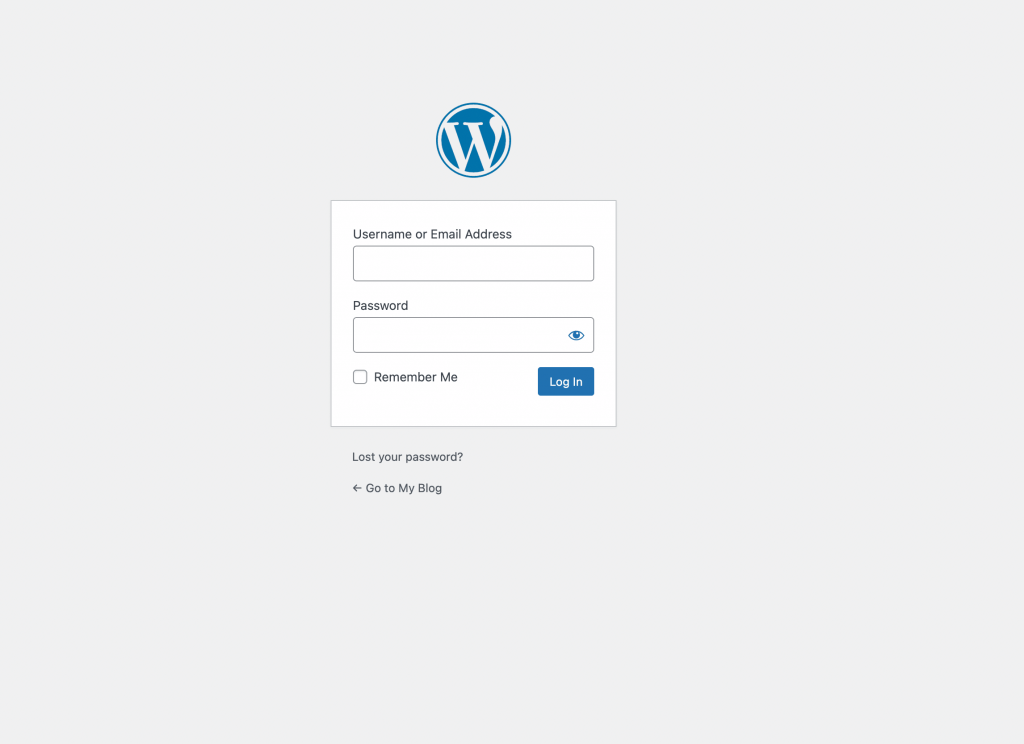
When you go to your WordPress login link, you’ll be redirected to the WordPress login page.

If you install WordPress on a subdirectory (sub-folder) on your web hosting account, you would apply the same suffix logic as your WordPress login link.

Let’s say we created a sub-folder called “test,” you’d use the following WordPress login links to access your WordPress dashboard:

  • https://yourdomainname.com/test/admin
  • https://yourdomainame.com/test/login
  • https://yourdomainname.com/test/wp-admin
  • https://yourdomainname.com/test/wp-admin.php

The same logic would apply on a subdomain let’s call it “test” again:

  • https://test.yourdomainname.com/admin
  • https://test.yourdomainame.com/login
  • https://test.yourdomainname.com/wp-admin
  • https://test.yourdomainname.com/wp-admin.php

Once you get to your WordPress login page, enter your username or email address and password to login to your WordPress dashboard.
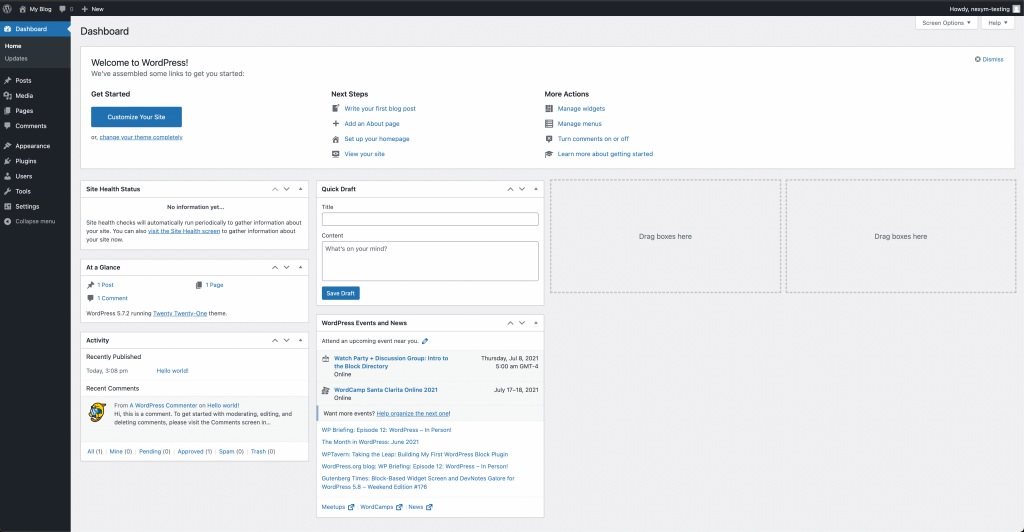
Once you login through your WordPress login link, you’ll access your WordPress dashboard to build your website.

Bookmark your WordPress login link

At this point, you might be thinking “those are too many links to remember.” It’s easy to forget them. This is when bookmarks are your best friend.

You can easily bookmark your WordPress login link in your browser bookmark manager. Or, you can bookmark your WordPress login link directly into your WordPress website’s main menu or footer using a widget.

Keep reading to see how to bookmark your WordPress login link to your main menu and footer.

Main Menu

In your WordPress dashboard, go to Appearance, then click Menus. Click to expand the Custom Links dropdown.
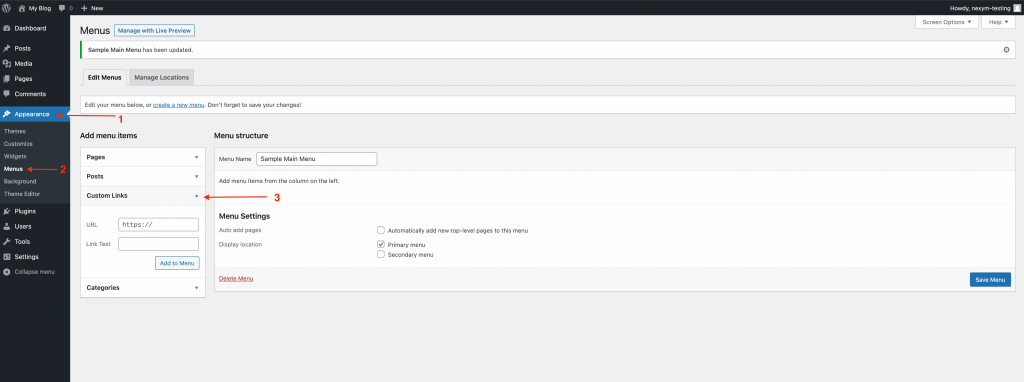
Click on Appearance > Menus > Custom Links to expand the dropdown for your URL and Link Text fields.

Under the Custom Links field, you’ll see two fields, the URL and Link Text fields. In there, you will put in your WordPress admin login information to directly embed your WordPress login link to your main menu.

In our example, we’ve put in the following details:

  • URL: https://testing.infoceptor.com/admin
  • Link Text: WordPress Login

You’ll then click the ‘Add to Menu’ button and save.
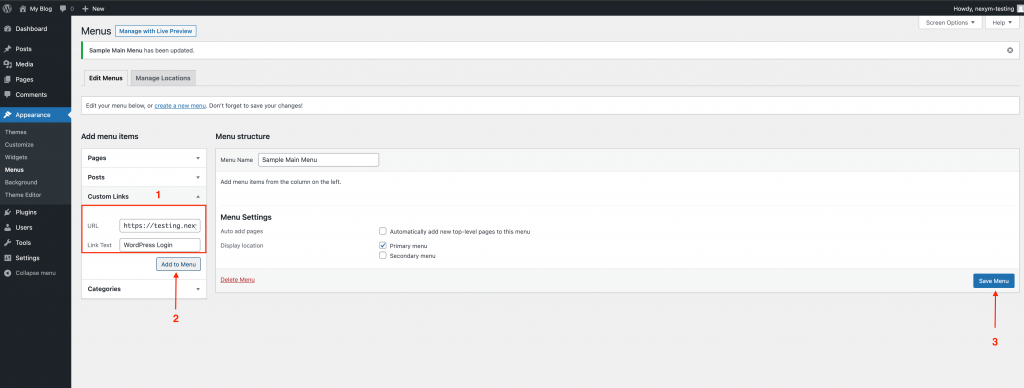
Fill in the URL and Link text fields, click Add to Menu > Save Menu to add your WordPress login link to your main menu.

Go to your WordPress website, and you’ll see your WordPress login link in your main menu. Click it and you’ll be taken straight to your WordPress admin page to login to your WordPress dashboard.
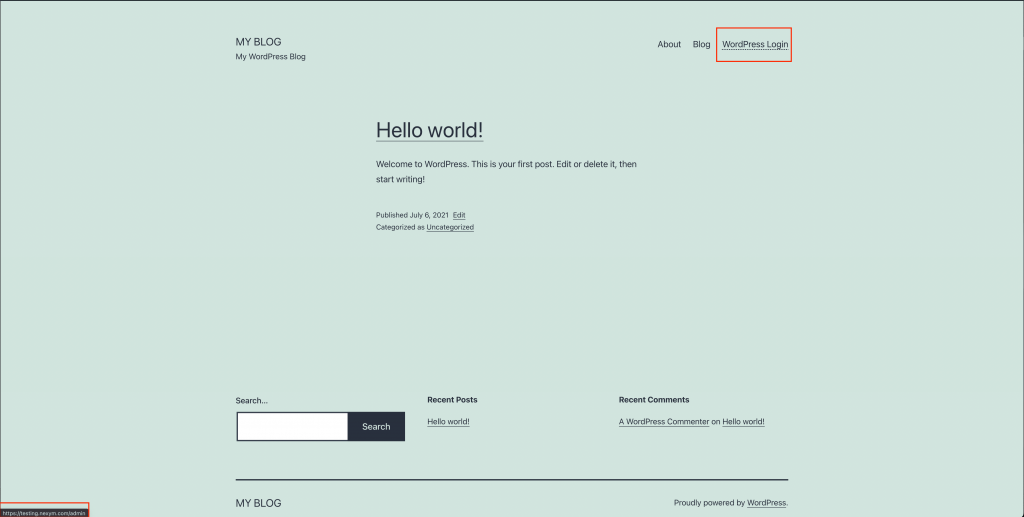
Click on your WordPress login link directly from your WordPress website’s main menu.

Footer

Another way to embed your WordPress login link to your website is by using a meta widget in your footer. Meta widgets are handy because you can embed several links into them and they don’t clutter your website’s main menu.

To create a meta widget on your footer, go to your WordPress dashboard, click on Appearance, then Widgets. From the left-hand side, locate and click on “Meta” from under the available widgets, then click the “Add Widget” button.
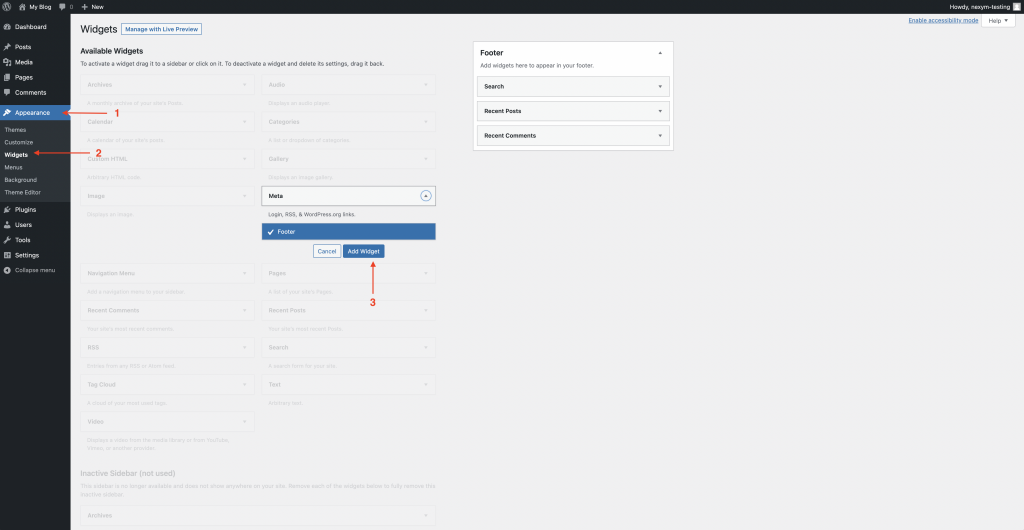
Click on Appearance > Widgets > Meta, then Add Widget to add your Meta widget to your footer.

Once the Meta widget is added to your footer, it will automatically add your WordPress admin login link to your website’s footer under “Site Admin.”
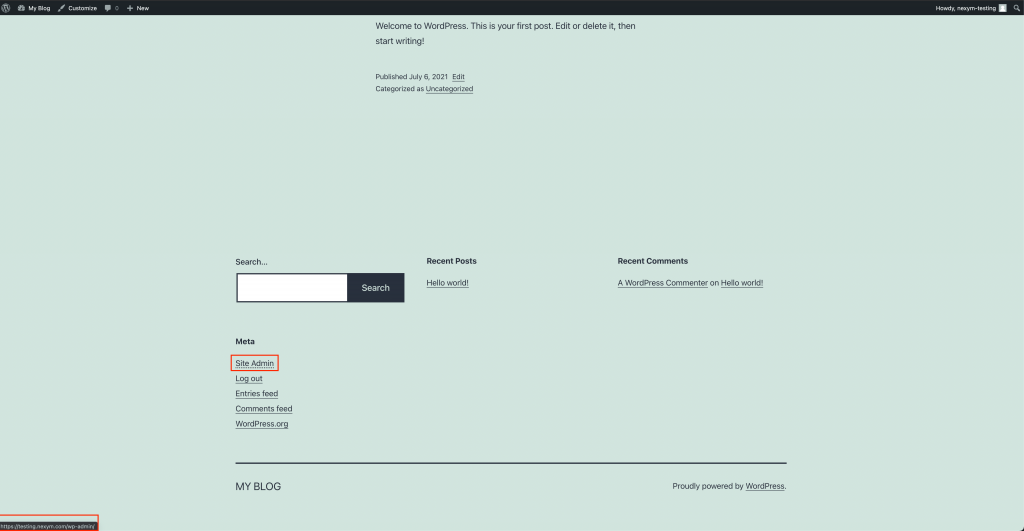
Go to Site Admin to get to your WordPress login link from your WordPress website’s footer.

You’ll have direct access to your WordPress login page by bookmarking it to your WordPress website’s main menu or footer. No more memorizing or losing track of links.

WordPress single sign on

Many WordPress hosting companies offer a single sign on directly to your WordPress dashboard. This makes things incredibly easy because you just click a button, no links, bookmarks, or embedding required.

Check out our favorite WordPress hosting companies and how to use their single sign on button to login to your WordPress dashboard.

Skystra WordPress login link

Skystra is our favorite WordPress host for performance and solid customer service. They make it super easy to login to your WordPress admin area.

From your main Skystra account center homepage, you simply click your package under the Your Active Products/Services section and then WordPress Toolkit under the Quick Shortcuts section. Once in WordPress Toolkit, just click Log in next to your WordPress installation. This will take you directly to your WordPress admin page.

One thing we love about Skystra is they automatically randomize your WordPress username, which shields you better against hacking and brute-force attacks. More on that below.

Read our full Skystra review to learn more about Skystra.
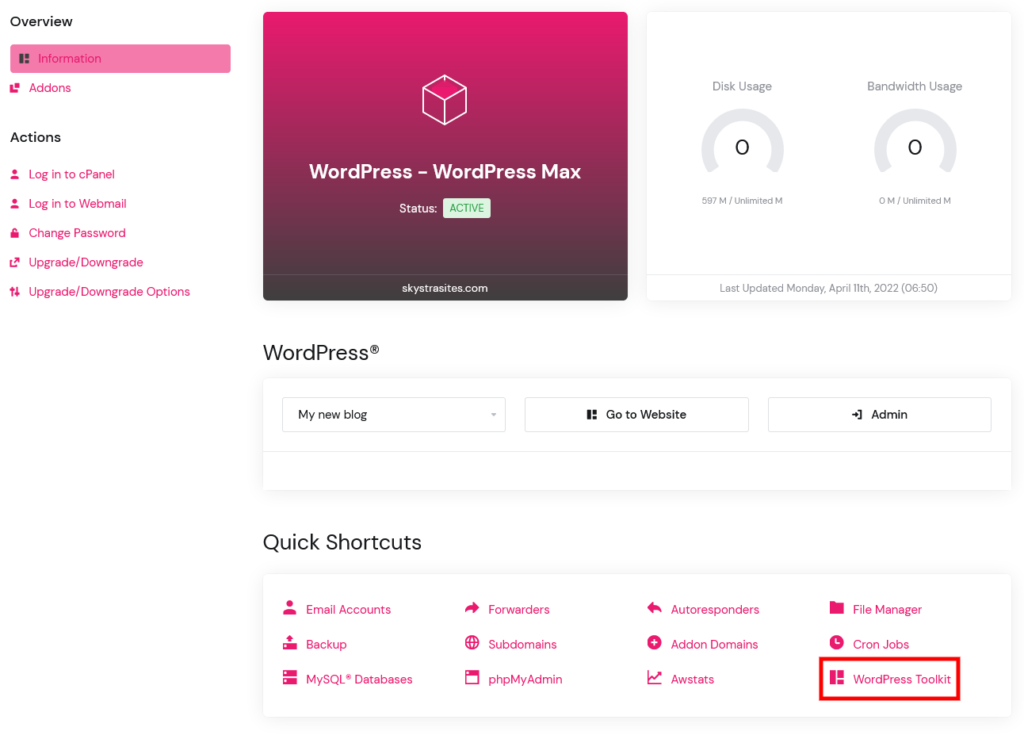
Skystra’s WordPress Tools provide direct access to your WordPress admin dashboard. (Image credit: Skystra.com)

Bluehost WordPress login link

Bluehost is an affordable and beginner-friendly website hosting company. They make it very easy to access to your WordPress admin area.

From your client account main menu, click on My Sites, then find the square for your WordPress website. Hover over it and click Log into WordPress. You’ll be taken directly to your WordPress admin page.

Read our full Bluehost review to learn more about Bluehost.
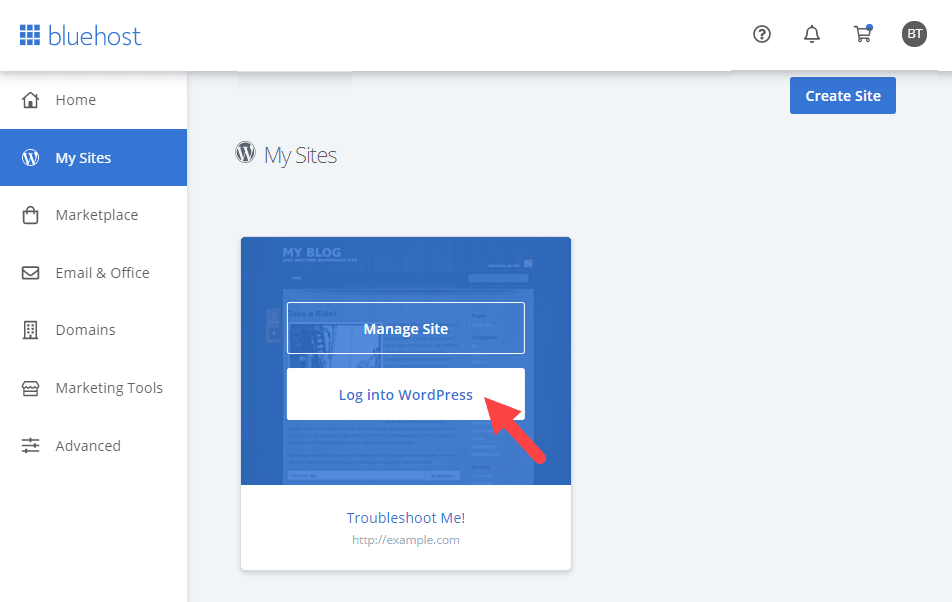
On your Bluehost dashboard, click on Login into WordPress to access your WordPress dashboard. (Image credit: Bluehost.com)

HostGator WordPress login link

HostGator is an affordable web hosting company that offers easy to use website and WordPress hosting.

Through an App installer called Softaculous, integrated into the HostGator customer dashboard, login to your WordPress admin page with 1-click.

Read our full HostGator review to learn more about HostGator.
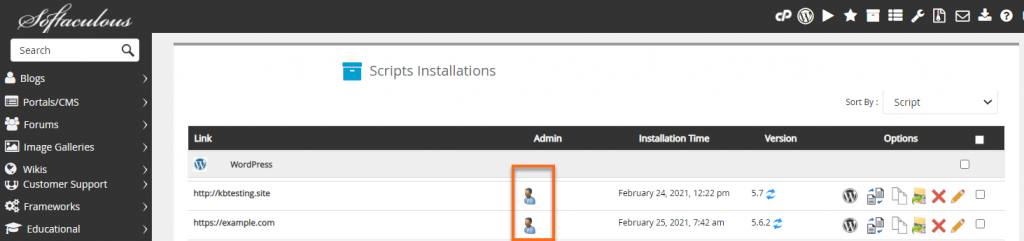
Access your WordPress admin page with single sign on at HostGator through Softaculous. (Image credit: HostGator.com)

Bypass your WordPress login page

Now that you know the WordPress login links and how to bookmark them, you can easily access your WordPress login page. When you have to access your WordPress login page frequently, typing in your username (or email address) and password each time can get tedious.

The WordPress login page makes it very easy to store your WordPress admin logins with the “Remember Me” box.

By using the WordPress “Remember Me” feature, WordPress will automatically store your WordPress admin logins for 14 days, as long as you log in from the same browser.
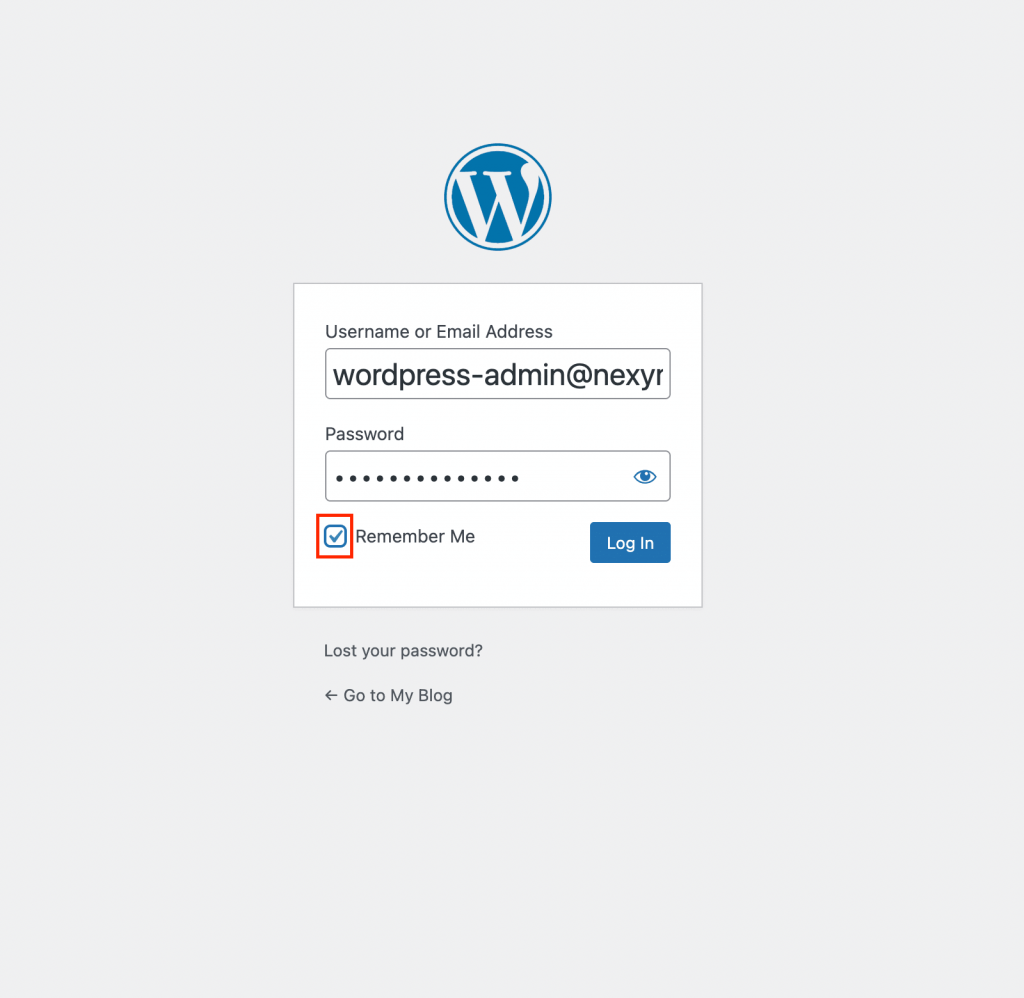
Tick the “Remember Me” box to bypass the WordPress login page, stored for 14 days.

To automate your life even more, you can also use the Remember Me plugin to set up your WordPress login page bypass for yourself and all of your WordPress users.

Change your WordPress login link

When it comes to WordPress, security is everything. It’s handy that WordPress has the same login link suffixes for all websites, however, this can also create some security loopholes.

If a hacker wanted to guess how to login to your WordPress website, step one is finding the WordPress admin login page. You want to make things as hard as possible and difficult to guess, to protect your WordPress website from hacks, attacks, and brute-force login attempts.

Brute-force and hacking attempts are particularly invasive. What the attackers tries to do is guess your WordPress username and password by using standard lists of leaked WordPress usernames and passwords. It doesn’t help that the default username for WordPress is “admin,” making things even easier to guess.

One way to protect your WordPress website is to change your WordPress login URL. Keep reading to learn how to change your WordPress login URL and better secure your WordPress website.

WPS Hide Login Plugin

To change your WordPress login link, you can use the WPS Hide Login plugin, it’s free and easy to setup on your WordPress website.
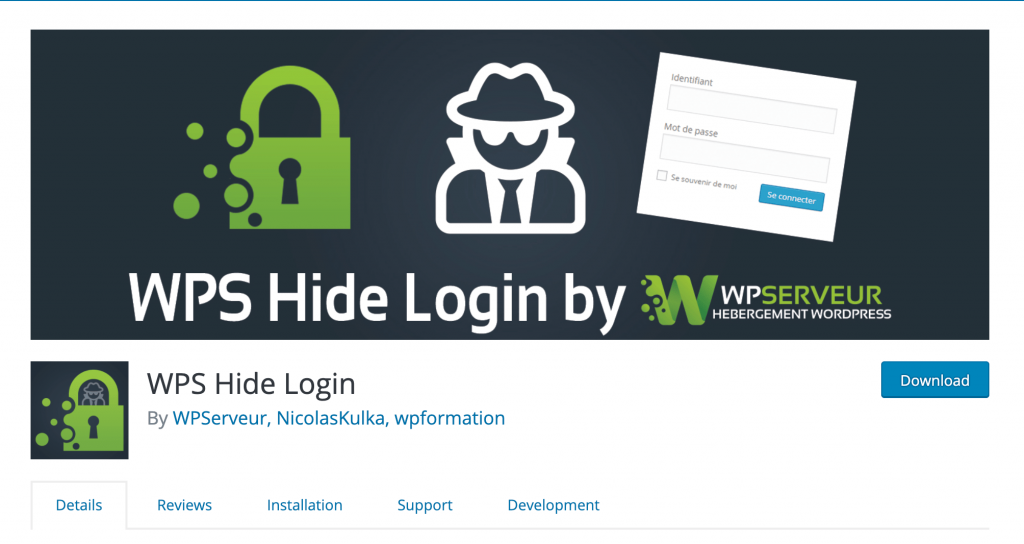
Change your WordPress login URL with the WPS Hide Login plugin to secure your website. (Image credit: WordPress.org)

To activate the WPS Hide Login plugin, click on Plugins then Add New on your WordPress dashboard. From there, type in WPS Hide Login in the search bar, click Install Now, followed by the Activate button.
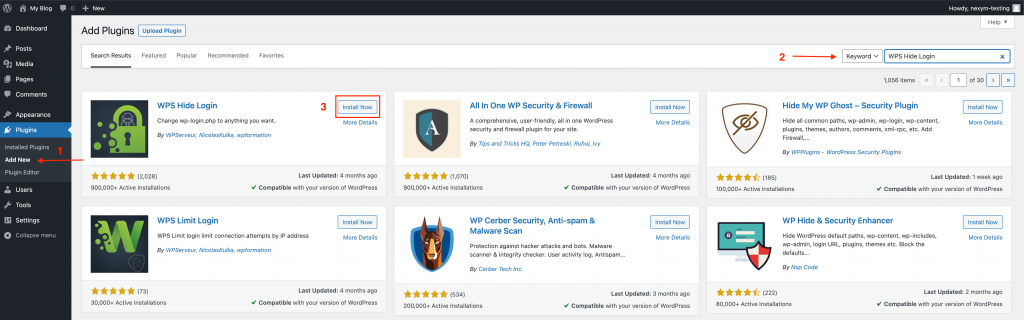
To activate the WPS Hide Login plugin, click on Add New, Install Now, then Activate.

Once installed, head over to your Settings and click on WPS Hide Login. Scroll to the bottom until you see WPS Hide Login. Next to Redirection URL, you can put in your custom WordPress login link.

Our tip is to set up two random words separated by a hyphen, you can use the random word generator to create your WordPress admin login words. Make sure to hit save.
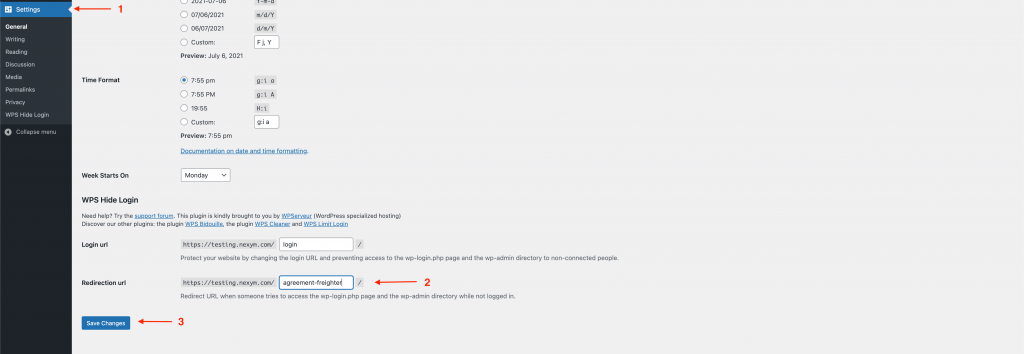
Create your randomized WordPress admin login URL under the WPS Hide Login settings.

Once you create your new WordPress login URL, it will be the only one you can use to access your WordPress admin page. The regular WordPress login suffixes will automatically redirect to a 404 error page. This secures your WordPress website, however make sure to keep note of your new WordPress login link so you don’t lock yourself out.

If you opt for a randomized WordPress login link, make sure to bookmark it on your browser, but not on the main menu or footer.

Improve your WordPress login security

Our technical experts are always on the lookout for the best ways to secure your WordPress website.

There are many ways to improve security on your WordPress, and here are the top tips to improve your WordPress login security:

  • Regenerate new randomized words for your WordPress login link every 90 days
  • Reduce the number of login attempts on your WordPress login page
  • Add 2FA (Two Factor Authentication) to your WordPress admin login
  • Change your default username from ‘admin’ to a random word
  • Set up hard to guess passwords, with special characters and symbols

We hope this guide helps you find, bookmark, and secure your WordPress login link. If you’re looking to get started on WordPress, make sure to check out the best WordPress hosting services in 2022.


Infoceptor's editorial team handpicks all of the products and services it recommends, regardless of external influences. Affiliate links appear in some of our stories. We may receive an affiliate commission if you purchase something through one of these links, which helps us stay independent and support our great team.

People also viewed:

How to find your WordPress dashboard login link Learn how to how to increase the maximum upload size in WordPress using Infoceptor's guide.How to increase the maximum upload size in WordPress How to speed up WordPress by disabling WP-cron How to fix broken links on your WordPress website How to create a job board using WordPress
WordPress wordpress admin wordpress dashboard wp-admin
Share. Facebook Twitter LinkedIn Reddit Telegram WhatsApp Pinterest Email
Previous ArticleHow is a blog different than a website?
Next Article What is a subdomain and what is it used for?
Matthew Drummond

Matthew is a Infoceptor Technology writer. Having worked as a systems administrator for over 15 years gives him unique insight into the inner works of technology. Ultimately his passion for writing brought him to share his technical expertise with the world.

Related Stories

How to speed up WordPress by disabling WP-cron

February 16, 2024

How to find your WordPress dashboard login link

January 25, 2024

How to fix broken links on your WordPress website

December 29, 2023
Learn how to how to increase the maximum upload size in WordPress using Infoceptor's guide.

How to increase the maximum upload size in WordPress

August 3, 2023

Comments are closed.

Connect
  • Facebook
  • Twitter
  • Pinterest
  • Instagram
  • YouTube
  • LinkedIn
  • Reddit
  • TikTok
Don't Miss
Flywheel Logo Reviews

Flywheel review in 2023

By Matthew Drummond

Flywheel is a fast-growing web host that offers high-performance WordPress hosting for agencies, designers, and developers.

Travel restrictions in Canada are different depending on where you're traveling from and to. Here's what you need to know before you go.

Canada: Traveling restrictions and what you need to know before you go

May 19, 2024
If you are planning a trip to Spain, there are some travel restrictions that must be taken into consideration.

Spain: Traveling restrictions and what you need to know before you go

May 19, 2024
Learn how to build wealth and financial security. This article will share steps you can take to build a reliable cash reserve that will grow over time.

Do you want to build wealth? Here are some ways to grow your money

May 18, 2024
  • Auto
    • Auto Reviews
    • Electric
    • Insurance
  • Business
    • Company
    • Government
  • Entertainment
    • Movies
    • Music
  • Finance
    • Credit Cards
    • Crypto
    • Market
    • Personal Finance
  • Food
    • Coffee
    • Drinks
    • Holidays
  • Health
  • Beauty
  • Fitness
  • Food
  • Medical
  • Home
  • Backyard
  • Bathroom
  • Bedroom
  • Cleaning
  • Furniture
  • Home Office
  • Kitchen
  • Life
  • Astrology
  • Family
  • Fashion
  • Outdoors
  • Personal
  • Pets
  • Apple
  • Audio
  • Domain Names
  • Gaming
  • Google
  • Power
  • Reviews
  • Samsung
  • Destinations
  • Gear
  • Services
  • Space
  • Tourism
  • Technology
  • Tutorials
  • Web Hosting
  • WiFi
  • WordPress
  • Travel
  • Shopping
  • Sports
  • Work
  • Stocks
  • Television
  • Web Hosting
Facebook X (Twitter) Instagram Pinterest YouTube LinkedIn Reddit TikTok
© 2026 Infoceptor

Type above and press Enter to search. Press Esc to cancel.