Close Menu
Infoceptor
  • Business
  • Finance
  • Technology
  • Health
  • Life
  • More
    • Auto
    • Food
    • Health
    • Home
    • Space
    • Travel

Subscribe to Updates

Get the latest creative news from FooBar about art, design and business.

What's Hot
Flywheel Logo

Flywheel review in 2023

June 8, 2023
Travel restrictions in Canada are different depending on where you're traveling from and to. Here's what you need to know before you go.

Canada: Traveling restrictions and what you need to know before you go

May 19, 2024
If you are planning a trip to Spain, there are some travel restrictions that must be taken into consideration.

Spain: Traveling restrictions and what you need to know before you go

May 19, 2024
Facebook X (Twitter) Instagram
Infoceptor
  • Business
    This guide will show you how to determine the value of your business using different business valuation methods.

    How to value you business – The ultimate guide for 2023

    May 9, 2024
    Have you ever thought of starting your own laundry service? Find out how with this easy guide.

    How to start a laundry service company in 2023

    May 5, 2024
    Learn about the best online payment solutions available to you. Check out what’s available, learn their pros and cons, and choose the one that best fits your needs.

    The 15 best online payment solutions in 2023

    April 27, 2024
    Learn how to create powerful backlinks for your website and increase your site's search engine ranking.

    How to build backlinks to your website

    April 25, 2024
    In this beginner's guide, we will show you the steps involved in creating a mobile app.

    Beginner’s guide on how to develop a mobile app

    April 24, 2024
  • Finance
    Learn how to build wealth and financial security. This article will share steps you can take to build a reliable cash reserve that will grow over time.

    Do you want to build wealth? Here are some ways to grow your money

    May 18, 2024
    Want to know your tax bracket? Check out our article for an overview of the different brackets and what you can expect to pay in 2022.

    Understanding IRS tax brackets – here’s what you’ll pay in 2023

    May 14, 2024
    This article will cover the best electric vehicle battery stocks to buy and invest in.

    The 10 best EV battery stocks to buy in 2023

    May 9, 2024
    The 10 most active penny stocks to watch this year is a list of the most active penny stocks ranked by total volume.

    The 10 most active penny stocks to watch in 2023

    May 8, 2024
    These electric car stocks are making a lot of money and you should consider adding them to your portfolio.

    The best electric car stocks to buy in 2023

    May 8, 2024
  • Technology
    Flywheel Logo

    Flywheel review in 2023

    June 8, 2023
    This article provides a list of the top iPhone models available today. Each model is reviewed based on features, specifications, performance, design and price point.

    Top iPhone models we’ve tested and you should get

    May 17, 2024
    Find out everything you need to know about the Apple Airpods Pro, including their price, features and if they're worth buying.

    Are Apple AirPods Pro a great choice in 2023?

    May 17, 2024
    To help you find the best responsive WordPress themes, we analyzed more than 100 themes and found those that are currently trending.

    The best responsive WordPress themes in 2023

    May 16, 2024
    These sympathy gifts make a great way to show you care while they also help your loved ones get through the tough times.

    The 15 best sympathy gifts that will show you care

    May 15, 2024
  • Health
  • Life
    These sympathy gifts make a great way to show you care while they also help your loved ones get through the tough times.

    The 15 best sympathy gifts that will show you care

    May 15, 2024
    Water bottles are a great way to stay hydrated. This article is dedicated to the most popular water bottles of the year!

    The best water bottles of 2023

    May 10, 2024
    Learn 30 weird and fun facts that will make you question everything.

    30 weird and fun facts that will make you question everything

    May 10, 2024
    Find out which cities in the US are the best for quality of life by checking out this article.

    20 best cities for quality of life in the USA

    May 7, 2024
    There are many ways to print your designs on t-shirts. Check out our list of the best printing services that offer top-notch quality at affordable prices.

    The 10 best T-shirt printing services of 2023

    May 6, 2024
  • More
    • Auto
    • Food
    • Health
    • Home
    • Space
    • Travel
Facebook X (Twitter) Instagram
Trending
  • Flywheel review in 2023
  • Canada: Traveling restrictions and what you need to know before you go
  • Spain: Traveling restrictions and what you need to know before you go
  • Do you want to build wealth? Here are some ways to grow your money
  • Our in-depth review of the Always Pan
  • Top iPhone models we’ve tested and you should get
  • Are Apple AirPods Pro a great choice in 2023?
  • The best shower heads of 2023
Infoceptor
Home»Technology»Tutorials»How to increase the maximum upload size in WordPress
Tutorials WordPress

How to increase the maximum upload size in WordPress

Matthew DrummondBy Matthew DrummondAugust 3, 20238 Mins Read
Facebook Twitter LinkedIn Reddit Telegram WhatsApp Pinterest Email
Learn how to how to increase the maximum upload size in WordPress using Infoceptor's guide.
Share
Facebook Twitter LinkedIn

A WordPress file upload size limit may be preventing you from uploading larger files, plugins, and even themes to your WordPress website.

In order to fix this, you can increase the maximum upload size limit in your WordPress.

This guide will show you how to increase the how to increase upload size in WordPress.

How to increase the maximum upload size in WordPress
  1. Edit your .htaccess file
  2. Update your PHP options
  3. Create a php.ini file
  4. Update your theme functions.php file
  5. Create a user.ini file
  6. Use a WordPress plugin
  7. Ask your hosting provider

Check your WordPress upload size

First, let’s learn how to check your WordPress upload size.

There are three easy ways to check your WordPress max upload size.

Media

In WordPress, select Media from the left hand menu and click on Add New.

Click on Media > Add New from your WordPress dashboard.

Look for Maximum upload file size field.

Check your maximum upload file size under Upload New Media.

Your WordPress max upload size will be indicated next to the Maximum upload file size field.

Site Health (Media Handling)

In WordPress, select Tools from the left hand menu and click on Site Health.

Click on Tools > Site Health from your WordPress dashboard.

From the tabs at the top, select Info.
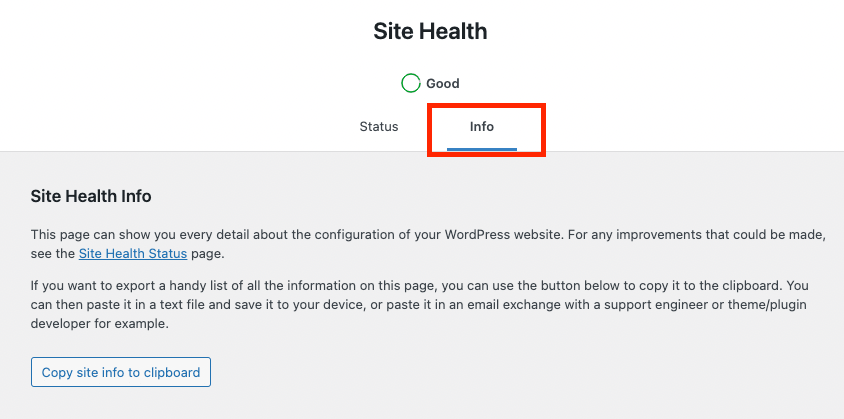
Click on the Info tab under Site Health.

Under Info, click on the Media Handling section.

From the Media Handling list, look for the Max size of an uploaded file field.
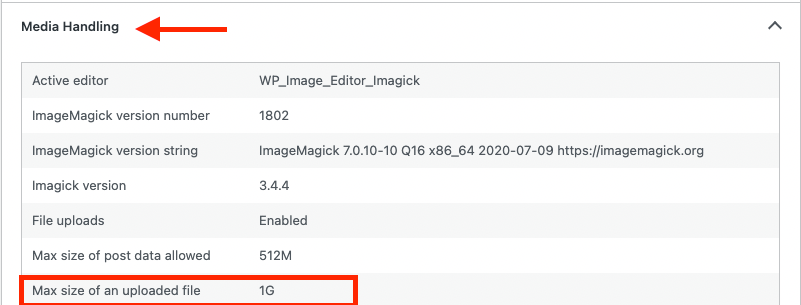
Open the Media Handling tab and check Max size of an uploaded file.

Your WordPress max file upload size will be indicated next to Max size of an uploaded file field.

Site Health (Server)

On the Info tab under Site Health, click on the Server dropdown.

From the Server list, look for the Upload max filesize field.

Open the Server tab and check Upload max filesize.

Your WordPress max upload size will be indicated next to Upload max filesize field.

Why should you increase the upload file size in WordPress?

The default WordPress max upload file size is normally determined by your hosting provider and will be set anywhere from 2 MB to 128 MB.

That upload size works for most WordPress websites, however, depending on the needs of your website, you may require a higher limit.

Let’s look into some common reasons to increase the max file upload size in WordPress:

  • You have video content that you want to upload

An increase in the max upload file size will allow you to increase the quality of your videos and increase their duration.

  • You have a lot of media files to upload

Increasing the max upload file size will increase the number of media files that you can store on your WordPress website.

  • Your plugins and themes are larger in size and need more space to be uploaded

Increasing the max upload file size in WordPress is a common requirement for larger sized plugins and themes.

Let’s now look into some full proof methods to increase to increase the maximum upload size in WordPress.

Edit your .htaccess file

The .htaccess file found in your root directory (public_html) is can increase the WordPress file upload size.

Your root directory, i.e., public_html, is where your main WordPress website files are located at your web hosting provider.

Go to your public_html folder and find the .htaccess file. If you don’t see your .htaccess in public_html right away, enable ‘show hidden files’ and it will appear.
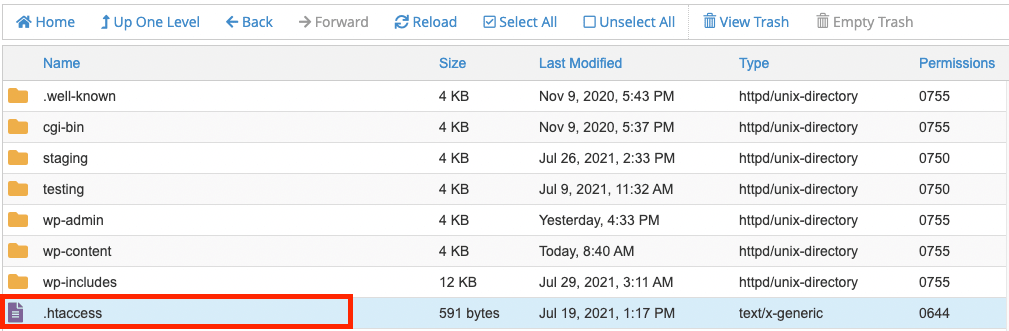
Under your public_html directory, open your .htaccess file.

Inside of your .htaccess file, put in the following code snippet:

upload_max_filesize = 32M
post_max_size = 64M
memory_limit = 128M

You can change the values depending on your requirements. The above code shows that you are changing the max upload file size to 32 MB*, increasing the post_max_size by 64 MB and increasing the memory_limit to 128 MB. These specs will cover most upload size requirements.

*Important: Make sure to put your MB values in M and GB values in G inside of your .htaccess file or any other WordPress website file. This is how PHP handles size directives.

Update your PHP options

Normally, all web hosting providers will give you access to a web management platform, typically it’ll be cPanel or their own custom web dashboard.

On your web management platform, you will see a tool (if enabled) to control your PHP settings. You can update your WordPress max upload size inside in the PHP tool.

Inside of your hosting control panel, look for the PHP selector tool, in cPanel, this is called Select PHP version.
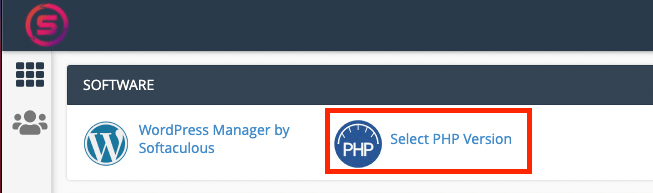
Find your PHP tool within your web hosting management platform.

From the top, click on the Options tab.
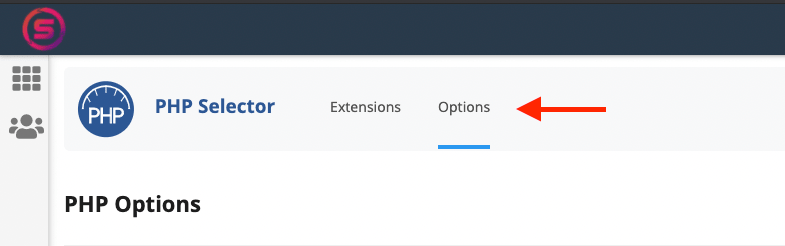
Click on PHP Options within your PHP manager.

Look for the upload_max_filesize field, click on the dropdown and set your new limit.
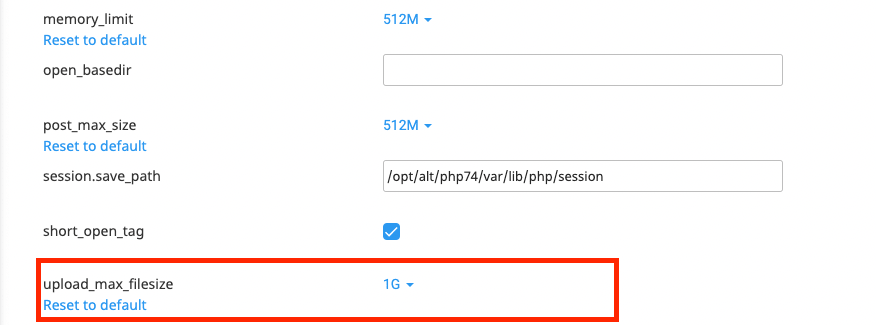
Modify your upload_max_filesize setting under PHP options.

Most hosting providers will let you set a max of 512 M (MB) or 1 G (GB).

Create a php.ini file

Go back to your root directory, public_html. Remember, your main WordPress website (i.e. WordPress website linked to your primary domain name) is located in the public_html main directory.

If you are increasing the WordPress max upload size on a different WordPress website, you will need to go to the subdirectory of that website, located in the correct subfolder within public_html.

Inside of public_html, click create new file.

Call your file ‘php.ini’ – a php.ini file is a file that allows you to increase your WordPress PHP configuration without having to modify your hosting control panel settings.
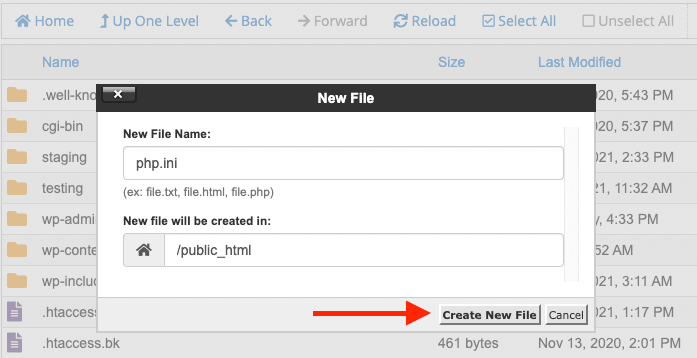
Under public_html, create a new file called php.ini

Inside of the php.ini file, put in this code snippet:

upload_max_filesize = 32M
post_max_size = 64M
memory_limit = 128M

his will increase your WordPress max upload size to 32 MB.

Update your theme functions.php file

Your theme functions.php file is a file that allows you to increase WordPress max upload size.

To edit your theme functions.php file, verify which theme you are using in WordPress first.

In your WordPress dashboard, click on Appearance, then Themes. Your active theme will be first on the list with an Active banner on it.
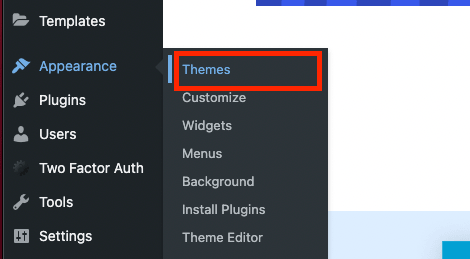
Click on Appearance > Themes from your WordPress dashboard.

Next, go to your public_html directory (or subdirectory) and click on the wp-content folder.
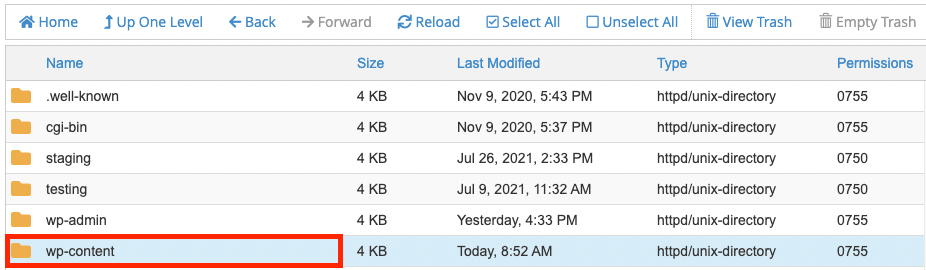
Under public_html, click on the wp-content folder.

From the wp-content folder, click on the themes folder.
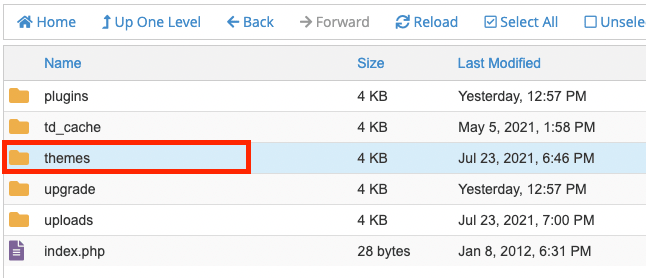
In the wp-content folder, click on the themes folder.

Inside the themes folder, find your active theme’s name.

Find your theme name and click on its folder.

Once in your theme’s folder, scroll down and locate the functions.php file.

From your theme folder, click to edit the functions.php file.

Put in the following code snippet:

@ini_set( 'upload_max_size' , '32M' );

@ini_set( 'post_max_size', '64M');

@ini_set( 'max_execution_time', '128' );

his will increase your WordPress max upload size to 32 MB.

Create a user.ini file

Similar to the php.ini file, you can create a user.ini to increase your file upload size in WordPress.

In your public_html directory, click create new file and name your file user.ini.
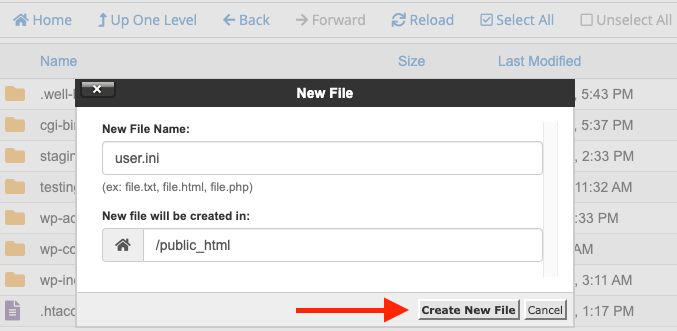
Under public_html, create a new file called user.ini

Inside of the user.ini file, put in the following code snippet:

upload_max_filesize = 32M
post_max_size = 64M
memory_limit = 128M

This will increase your WordPress max upload size to 32 MB.

Use a WordPress plugin

If you’re not comfortable with adding code snippets or modifying PHP settings, you can use a WordPress plugin to increase WordPress max upload size.

The WP Increase Upload Filesize plugin, aptly named, does exactly as it says.

To increase your WordPress max upload size using the WP Increase Upload Filesize plugin, follow these steps:

Go to your WordPress dashboard.

From your WordPress dashboard, click on Plugins and then Add New.
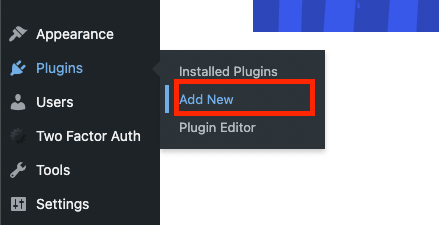
Click on Plugins > Add New in your WordPress dashboard.

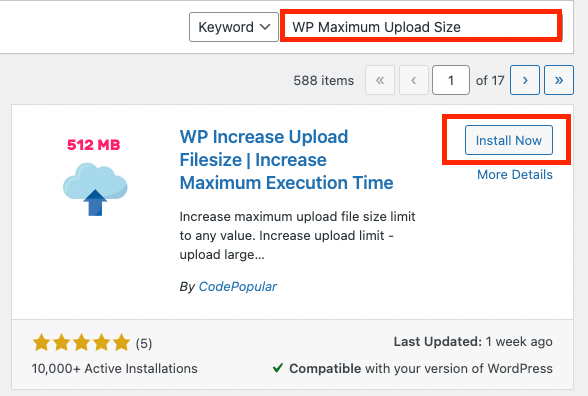
Search for WP Maximum Upload Size.

Install the WP Increase Upload Filesize plugin.

Install and activate the WP Increase Upload Filesize plugin from inside of your WordPress dashboard.
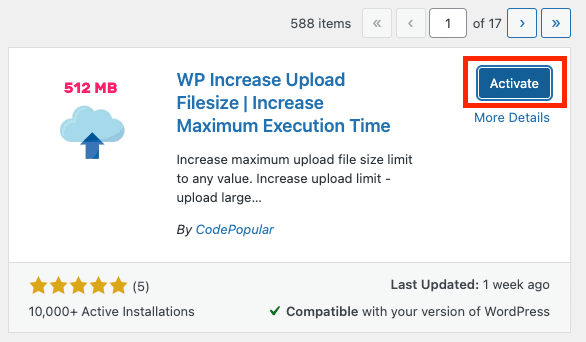
Activate the WP Increase Upload Filesize plugin.

Once installed and activated, click on Wp upload limit from your WordPress dashboard menu.

Click on Wp upload limit from your WordPress dashboard.

In the settings, increase your max upload size to increase WordPress max upload size. Click save changes.
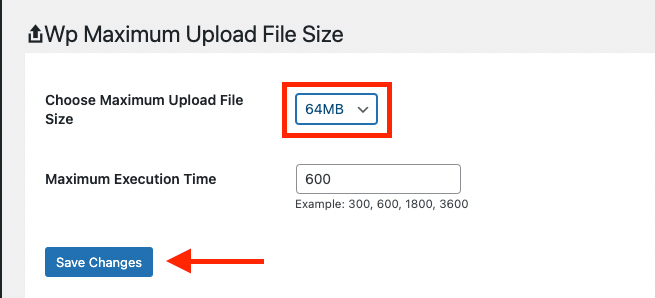
Set your Maximum Upload File Size and hit Save Changes.

You’ll only be able to increase the max upload size to the maximum your hosting provider allows with the WP Maximum Upload Size plugin.

Ask your hosting provider

If you require special or higher than normal setting for your WordPress max upload size, you can ask your hosting provider to increase it for you.

Depending on your hosting provider and your hosting subscription, they will either increase it for you or require an upgrade to get access to a higher allocation of server resources.

We hope this article showed you how to increase the maximum upload size in WordPress effectively.

As you can see, it is quite easy to do, even for beginners.

Did you increase your upload size in WordPress? Let us know how it went in the comments!

People also viewed:

Infoceptor's guide on how to find your WordPress login link.How to find your WordPress login link The 3 best ways to speed up your WordPress website How to set up forums on WordPress using the bbPress plugin How to speed up WordPress by disabling WP-cron How to clone WordPress pages and posts
increase maximum upload size max upload size php upload_max_filesize WordPress
Share. Facebook Twitter LinkedIn Reddit Telegram WhatsApp Pinterest Email
Previous ArticleThe best Disney World hotels
Next Article The best places to buy patio furniture online
Matthew Drummond

Matthew is a Infoceptor Technology writer. Having worked as a systems administrator for over 15 years gives him unique insight into the inner works of technology. Ultimately his passion for writing brought him to share his technical expertise with the world.

Related Stories

How to speed up WordPress by disabling WP-cron

February 16, 2024

How to set up forums on WordPress using the bbPress plugin

February 6, 2024
Infoceptor's guide on how to find your WordPress login link.

How to find your WordPress login link

January 4, 2024

The 3 best ways to speed up your WordPress website

September 7, 2023

Comments are closed.

Connect
  • Facebook
  • Twitter
  • Pinterest
  • Instagram
  • YouTube
  • LinkedIn
  • Reddit
  • TikTok
Don't Miss
Flywheel Logo Reviews

Flywheel review in 2023

By Matthew Drummond

Flywheel is a fast-growing web host that offers high-performance WordPress hosting for agencies, designers, and developers.

Travel restrictions in Canada are different depending on where you're traveling from and to. Here's what you need to know before you go.

Canada: Traveling restrictions and what you need to know before you go

May 19, 2024
If you are planning a trip to Spain, there are some travel restrictions that must be taken into consideration.

Spain: Traveling restrictions and what you need to know before you go

May 19, 2024
Learn how to build wealth and financial security. This article will share steps you can take to build a reliable cash reserve that will grow over time.

Do you want to build wealth? Here are some ways to grow your money

May 18, 2024
  • Auto
    • Auto Reviews
    • Electric
    • Insurance
  • Business
    • Company
    • Government
  • Entertainment
    • Movies
    • Music
  • Finance
    • Credit Cards
    • Crypto
    • Market
    • Personal Finance
  • Food
    • Coffee
    • Drinks
    • Holidays
  • Health
  • Beauty
  • Fitness
  • Food
  • Medical
  • Home
  • Backyard
  • Bathroom
  • Bedroom
  • Cleaning
  • Furniture
  • Home Office
  • Kitchen
  • Life
  • Astrology
  • Family
  • Fashion
  • Outdoors
  • Personal
  • Pets
  • Apple
  • Audio
  • Domain Names
  • Gaming
  • Google
  • Power
  • Reviews
  • Samsung
  • Destinations
  • Gear
  • Services
  • Space
  • Tourism
  • Technology
  • Tutorials
  • Web Hosting
  • WiFi
  • WordPress
  • Travel
  • Shopping
  • Sports
  • Work
  • Stocks
  • Television
  • Web Hosting
Facebook X (Twitter) Instagram Pinterest YouTube LinkedIn Reddit TikTok
© 2026 Infoceptor

Type above and press Enter to search. Press Esc to cancel.