
Close Menu
Infoceptor
  • Business
  • Finance
  • Technology
  • Health
  • Life
  • More
    • Auto
    • Food
    • Health
    • Home
    • Space
    • Travel

Subscribe to Updates

Get the latest creative news from FooBar about art, design and business.

What's Hot
Flywheel Logo

Flywheel review in 2023

June 8, 2023
Travel restrictions in Canada are different depending on where you're traveling from and to. Here's what you need to know before you go.

Canada: Traveling restrictions and what you need to know before you go

May 19, 2024
If you are planning a trip to Spain, there are some travel restrictions that must be taken into consideration.

Spain: Traveling restrictions and what you need to know before you go

May 19, 2024
Facebook X (Twitter) Instagram
Infoceptor
  • Business
    This guide will show you how to determine the value of your business using different business valuation methods.

    How to value you business – The ultimate guide for 2023

    May 9, 2024
    Have you ever thought of starting your own laundry service? Find out how with this easy guide.

    How to start a laundry service company in 2023

    May 5, 2024
    Learn about the best online payment solutions available to you. Check out what’s available, learn their pros and cons, and choose the one that best fits your needs.

    The 15 best online payment solutions in 2023

    April 27, 2024
    Learn how to create powerful backlinks for your website and increase your site's search engine ranking.

    How to build backlinks to your website

    April 25, 2024
    In this beginner's guide, we will show you the steps involved in creating a mobile app.

    Beginner’s guide on how to develop a mobile app

    April 24, 2024
  • Finance
    Learn how to build wealth and financial security. This article will share steps you can take to build a reliable cash reserve that will grow over time.

    Do you want to build wealth? Here are some ways to grow your money

    May 18, 2024
    Want to know your tax bracket? Check out our article for an overview of the different brackets and what you can expect to pay in 2022.

    Understanding IRS tax brackets – here’s what you’ll pay in 2023

    May 14, 2024
    This article will cover the best electric vehicle battery stocks to buy and invest in.

    The 10 best EV battery stocks to buy in 2023

    May 9, 2024
    The 10 most active penny stocks to watch this year is a list of the most active penny stocks ranked by total volume.

    The 10 most active penny stocks to watch in 2023

    May 8, 2024
    These electric car stocks are making a lot of money and you should consider adding them to your portfolio.

    The best electric car stocks to buy in 2023

    May 8, 2024
  • Technology
    Flywheel Logo

    Flywheel review in 2023

    June 8, 2023
    This article provides a list of the top iPhone models available today. Each model is reviewed based on features, specifications, performance, design and price point.

    Top iPhone models we’ve tested and you should get

    May 17, 2024
    Find out everything you need to know about the Apple Airpods Pro, including their price, features and if they're worth buying.

    Are Apple AirPods Pro a great choice in 2023?

    May 17, 2024
    To help you find the best responsive WordPress themes, we analyzed more than 100 themes and found those that are currently trending.

    The best responsive WordPress themes in 2023

    May 16, 2024
    These sympathy gifts make a great way to show you care while they also help your loved ones get through the tough times.

    The 15 best sympathy gifts that will show you care

    May 15, 2024
  • Health
  • Life
    These sympathy gifts make a great way to show you care while they also help your loved ones get through the tough times.

    The 15 best sympathy gifts that will show you care

    May 15, 2024
    Water bottles are a great way to stay hydrated. This article is dedicated to the most popular water bottles of the year!

    The best water bottles of 2023

    May 10, 2024
    Learn 30 weird and fun facts that will make you question everything.

    30 weird and fun facts that will make you question everything

    May 10, 2024
    Find out which cities in the US are the best for quality of life by checking out this article.

    20 best cities for quality of life in the USA

    May 7, 2024
    There are many ways to print your designs on t-shirts. Check out our list of the best printing services that offer top-notch quality at affordable prices.

    The 10 best T-shirt printing services of 2023

    May 6, 2024
  • More
    • Auto
    • Food
    • Health
    • Home
    • Space
    • Travel
Facebook X (Twitter) Instagram
Trending
  • Flywheel review in 2023
  • Canada: Traveling restrictions and what you need to know before you go
  • Spain: Traveling restrictions and what you need to know before you go
  • Do you want to build wealth? Here are some ways to grow your money
  • Our in-depth review of the Always Pan
  • Top iPhone models we’ve tested and you should get
  • Are Apple AirPods Pro a great choice in 2023?
  • The best shower heads of 2023
Infoceptor
Home»Technology»WordPress»How to move your website from Wix to WordPress
WordPress

How to move your website from Wix to WordPress

Asih TirtaBy Asih TirtaOctober 5, 20237 Mins Read
Facebook Twitter LinkedIn Reddit Telegram WhatsApp Pinterest Email
How to move your website from Wix to WordPress
Share
Facebook Twitter LinkedIn

Wix is a popular website builder service where you can build your websites using simple drag and drop website building tools.

However, it’s pretty limited in what it can do, especially when it comes to blogging. Wix doesn’t give you much control over your data and adding extra features can quickly become costly.

This is why many website owners decide to move their websites from Wix to WordPress.

We’ve prepared this guide to help you successfully move your website from Wix to WordPress.

Here’s a list of steps required to move your website from Wix to WordPress:

  1. Set up a WordPress installation
  2. Customize your WordPress site and appearance
  3. Import blog posts from Wix via RSS feed
  4. Create pages from Wix on WordPress
  5. Create menus on WordPress
  6. Import images from Wix to WordPress
  7. Redirect Wix to WordPress

Step 1: Set up WordPress installation

If you purchased a WordPress hosting service – you should already have WordPress installed out of the box. Many WordPress hosting services will pre-install WordPress for you, one of our favorites is Skystra.

Step 2: Customize WordPress site and appearance

Now that you have an active WordPress installation, it’s time to customize your site’s appearance and sections.

First, let’s set up WordPress permalinks by going to Settings > Permalinks.

We recommend using the Post name setting so your posts link structure is clean.

By using Post name, your post links will look like this:

www.yoursite.com/post-title

Instead of the default, which looks like this:

www.yoursite.com/2017/10/post-title
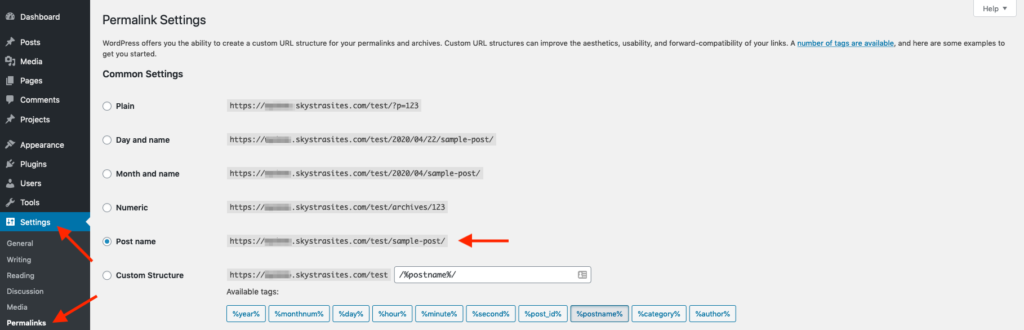
Once you update your Permalinks Settings, click the Save Changes button at the bottom of the page to apply the update.

Then go to the Settings > General, and set your Site Title and Tagline:
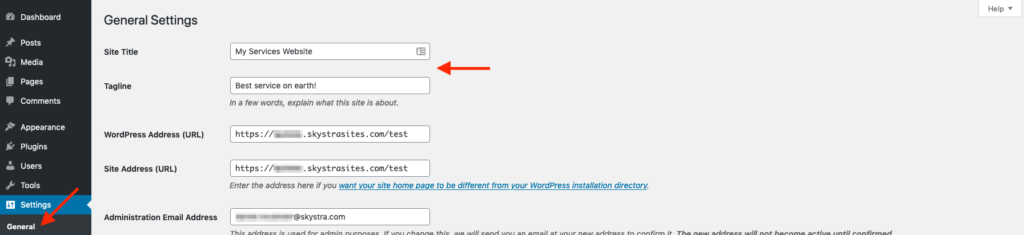
Next, you need to customize your website appearance using WordPress themes.

WordPress themes are like Wix templates, and by using them – you can change how your website looks. There are thousands of free and premium WordPress themes to choose from, depending on if you want a minimalist type of website or a heavy-duty feature-packed site.

If you’re a beginner, we recommend starting with a simple theme that’s easy to use.

To search and install themes, head to the Appearance > Themes section of the WordPress dashboard, and click on the Add New button.
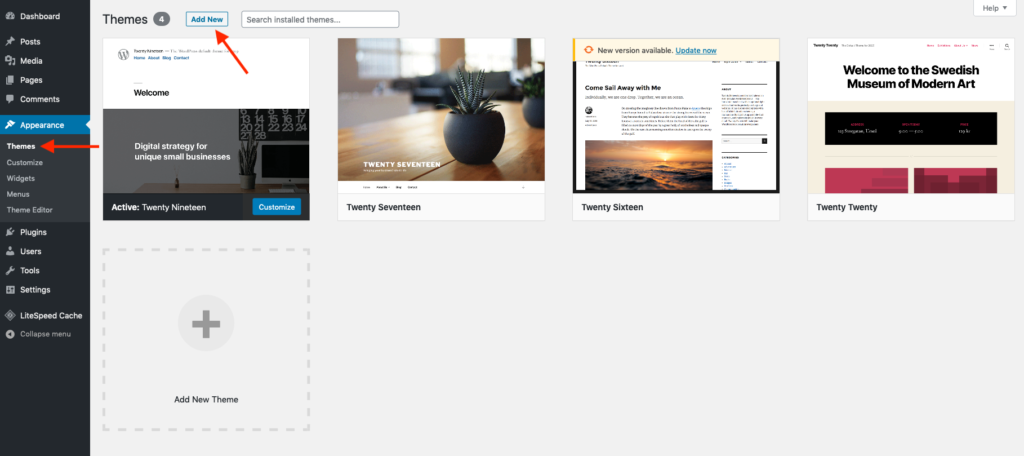
Here, you can find featured, latest, and popular themes which you can easily install using the Install button. Each theme can be previewed as well, which is quite handy.
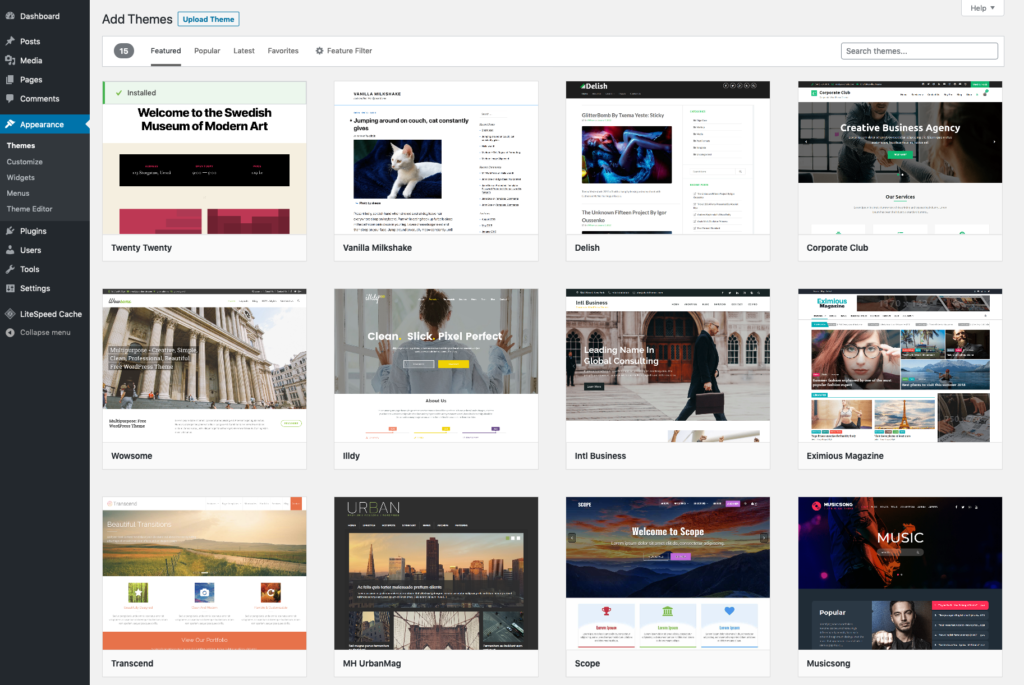
You don’t have to choose your theme right away, a default WordPress theme will work fine during the migration process away from Wix, and the most important task is bringing your content over from Wix first.

Step 3: Import blog posts from Wix via RSS feed

Now we need to go ahead and migrate your blog posts from Wix to your brand new WordPress website.

Since Wix is a closed platform, they don’t make it easy to migrate content or data from their platform. We’ll need to use RSS feeds to bring them over, and it’s a semi-automated process.

First, you’ll need to download the Wix RSS file, by adding /feed.xml or /blog-feed.xml to your Wix website URL.

If you have a wixsite.com subdomain, you’d do exactly the same – you’d add it after the blog name, for example:

https://yourusername.wixsite.com/blogname/blog-feed.xml

Make sure to replace yourusername with your actual Wix username, and blogname with your site name at Wix. The same goes if you have your custom domain with Wix:

https://yourdomain.com/blog-feed.xml

or

https://yourdomain.com/feed.xml

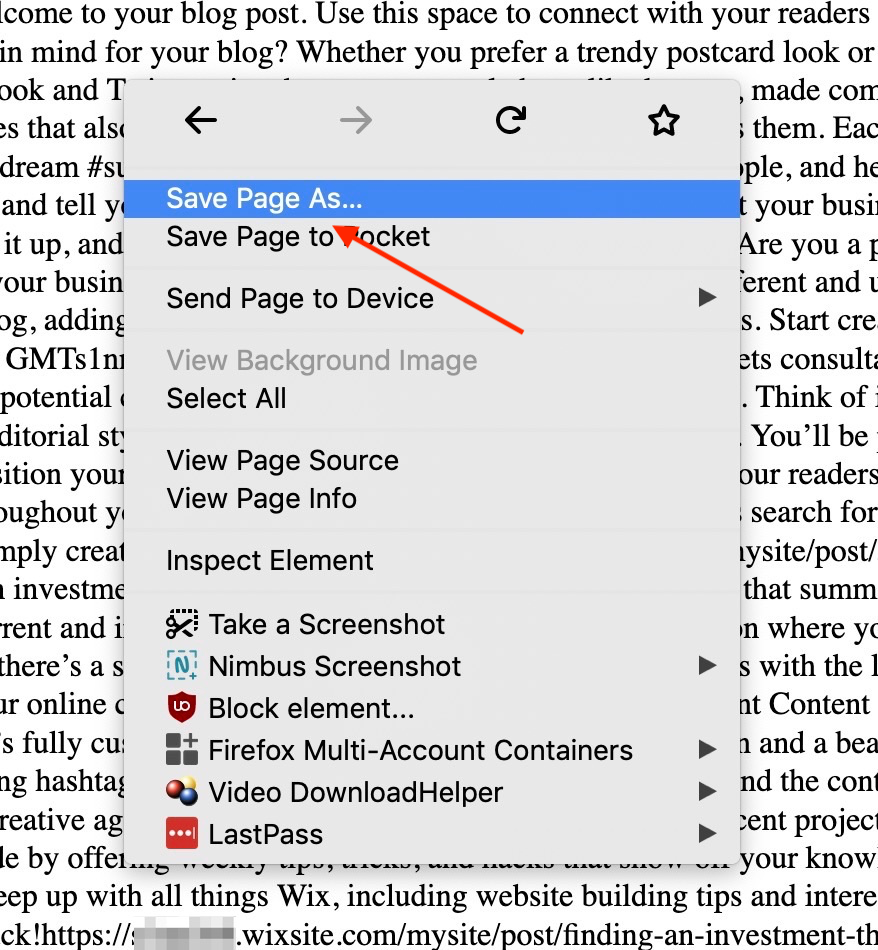
Once you access your Wix RSS URL, you’ll see a page full of code. Right-click your mouse anywhere on the page, and select the Save As (or Save Page As in Firefox) option and save the file.
Once you download the file, head back to your WordPress dashboard > Tools > Import option and click the Install button under the RSS option.
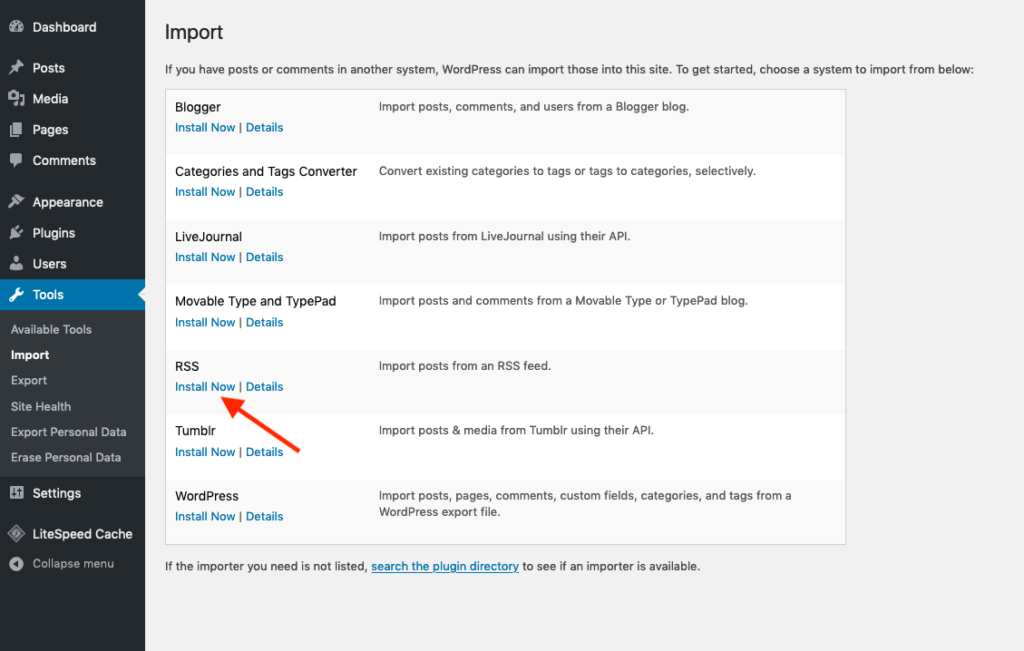
Once the RSS importer is installed, click the Run Importer button under it:

Click the Browse button, select the file you downloaded to your computer, and click the Upload file and import button.

You will receive a confirmation message once the installation process is completed.

It’s best to check if everything was imported correctly manually, so head to Posts > All Posts option and make sure that all posts are there.

Step 4: Create pages from Wix on WordPress

Unfortunately, Wix doesn’t offer any automated way to move pages from their service, so this part will have to be done manually.

Navigate to the Wix page that you want to move, select all content (except the title), and right-click > Copy.

Then head to Pages > Add New, and paste that content into the body section. Input the title and click the Publish button to publish it. You’ll have to follow this process for each page you want to move over.

Step 5: Create menus on WordPress

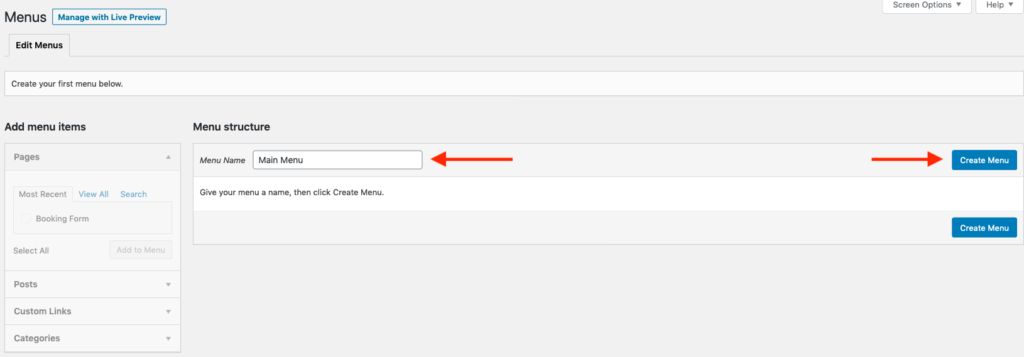
To create a menu for your website, head to Appearance > Menus, type the name of the menu, and click the Create Menu button.
On the left side, select all the pages you want to add to the menu and click the Add to Menu button. Select the menu position and click the Save Menu button to save the changes.
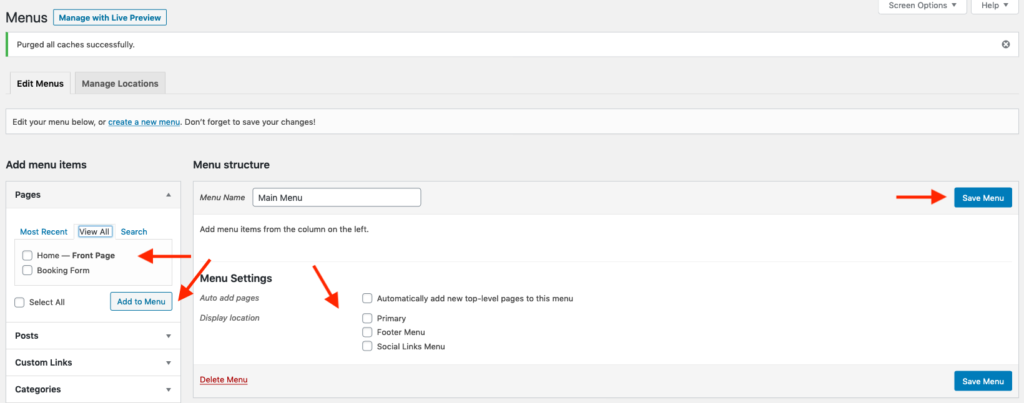
That’s it! Now you’ll have a functional menu displayed on your website.

Step 6: Import images from Wix to WordPress

To avoid manually uploading your images via FTP, you can use the Auto Upload Images plugin.

What this plugin does is search through the post for image URLs, and automatically downloads, uploads, and imports those images to your WordPress gallery and then post itself.

Head to Plugins > Add New, search for the Auto Upload Images in the top-right search bar, then install and activate it.
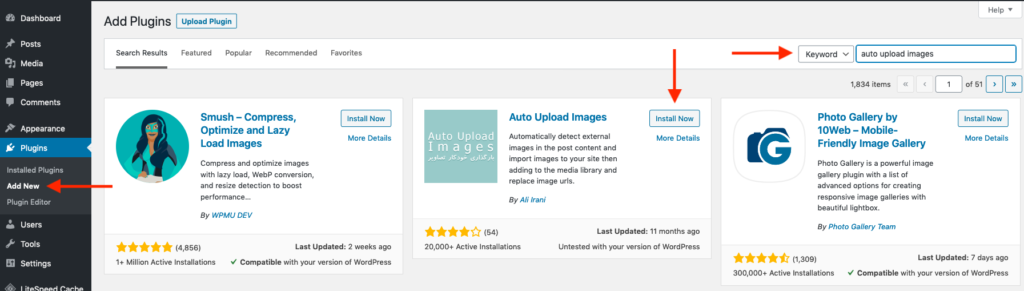
Once the plugin is activated, you need to re-save each post for it to go through them and replace images. To avoid doing the process manually, go to Posts > All Posts, click the Screen Options option at the top-right corner, and set the Number of items per page option to 999.

Next, select all your posts, choose the Edit option from the drop-down menu, and click the Apply button.

Once you see the WordPress edit box, click the Update button, and that’s it!

Step 7: Redirect Wix to WordPress

This step is very important as you’ll want to redirect all your website visitors that browse your old Wix website to the exact page on the new WordPress site.

In addition to that, redirect helps with SEO as it lets search engines know that your website has moved to a new location.

Keep in mind that the redirect method only works if you have a custom domain name on Wix.

If you had built your website on a free Wix subdomain, then the visitors can’t be redirected to your new WordPress site.

Copy the following code and paste it to your notepad application:

var hashesarr = {

"#!about/xxxx”:’/aboutus/‘,

"#!contact-us/xxxx”:’/contact/',

“#!some-article/xxxx”:’/some-article/'

};

for (var hash in hashesarr) {

var patt = new RegExp(hash);

if (window.location.hash.match(patt) !== null) {

window.location.href = hashesarr[hash];

}

}

The first part of the string (#!about/xxxx) is your old Wix URL, while the second part (/aboutus/) is the URL on your new WordPress website. You will have to do this manually for every URL you have on the Wix site that is being migrated to WordPress.

Once you’ve completed that, save the file under redirects.js name, and upload it to the WordPress theme /js/ directory on your account.

If your theme doesn’t have this directory available – create it from your FTP client or the File Manager.

Lastly, edit your theme’s functions.php file, and add this code to the bottom of the file:

function wpb_wixjs () {

wp_enqueue_script( 'wixredirect', get_stylesheet_directory_uri() . '/js/redirects.js', array(), '1.0.0', true);

}

add_action('wp_enqueue_scripts', 'wpb_wixjs'); 

Save the file, and you’re done!

Final thoughts

Make sure to go through your new WordPress website carefully to make sure that all of your content was migrated over properly and works well.

You can preview posts and pages before publishing them to try and catch errors before they go live. 

We know that moving away from Wix to WordPress can be complicated, but we hope this guide makes things just that much easier.

Have you ever migrated from Wix to WordPress? Let us know how it went in the comments below.

People also viewed:

How to reorder posts in WordPress and WooCommerce How to make your WordPress site more secure How to add a Pinterest pin it button to your WordPress website How to upload files from a WordPress form to Google Drive Choosing color scheme for your websiteHow to choose the perfect color scheme for your WordPress website
migrate migration move transfer wix WordPress
Share. Facebook Twitter LinkedIn Reddit Telegram WhatsApp Pinterest Email
Previous ArticleHow to move your existing media library into a new WordPress website
Next Article How to create a food delivery order form on your WordPress website
Asih Tirta

Asih is a Infoceptor Technology writer, she is passionate about how technology can serve people and improve lives. She helps run code camps for K to 12 to teach young girls how to code and open doors to careers in tech for women.

Related Stories

How to reorder posts in WordPress and WooCommerce

February 14, 2024

How to make your WordPress site more secure

February 13, 2024

How to add a Pinterest pin it button to your WordPress website

December 24, 2023

How to upload files from a WordPress form to Google Drive

September 7, 2023

Comments are closed.

Connect
  • Facebook
  • Twitter
  • Pinterest
  • Instagram
  • YouTube
  • LinkedIn
  • Reddit
  • TikTok
Don't Miss
Flywheel Logo Reviews

Flywheel review in 2023

By Matthew Drummond

Flywheel is a fast-growing web host that offers high-performance WordPress hosting for agencies, designers, and developers.

Travel restrictions in Canada are different depending on where you're traveling from and to. Here's what you need to know before you go.

Canada: Traveling restrictions and what you need to know before you go

May 19, 2024
If you are planning a trip to Spain, there are some travel restrictions that must be taken into consideration.

Spain: Traveling restrictions and what you need to know before you go

May 19, 2024
Learn how to build wealth and financial security. This article will share steps you can take to build a reliable cash reserve that will grow over time.

Do you want to build wealth? Here are some ways to grow your money

May 18, 2024
  • Auto
    • Auto Reviews
    • Electric
    • Insurance
  • Business
    • Company
    • Government
  • Entertainment
    • Movies
    • Music
  • Finance
    • Credit Cards
    • Crypto
    • Market
    • Personal Finance
  • Food
    • Coffee
    • Drinks
    • Holidays
  • Health
  • Beauty
  • Fitness
  • Food
  • Medical
  • Home
  • Backyard
  • Bathroom
  • Bedroom
  • Cleaning
  • Furniture
  • Home Office
  • Kitchen
  • Life
  • Astrology
  • Family
  • Fashion
  • Outdoors
  • Personal
  • Pets
  • Apple
  • Audio
  • Domain Names
  • Gaming
  • Google
  • Power
  • Reviews
  • Samsung
  • Destinations
  • Gear
  • Services
  • Space
  • Tourism
  • Technology
  • Tutorials
  • Web Hosting
  • WiFi
  • WordPress
  • Travel
  • Shopping
  • Sports
  • Work
  • Stocks
  • Television
  • Web Hosting
Facebook X (Twitter) Instagram Pinterest YouTube LinkedIn Reddit TikTok
© 2026 Infoceptor

Type above and press Enter to search. Press Esc to cancel.